Trex TV on Smart TV (Samsung, LG, Android TV): Complete Guide
Samsung, LG or Android TV: which app store to use, how to add your login, and the picture settings that make the biggest difference.
If your TV was made in the last few years, there is a good chance it can play Trex TV without any extra box at all. This guide explains how smart TV platforms differ, how to install a player app on Samsung, LG and Android TV sets, which picture settings actually matter, and what to do when a TV refuses to cooperate.
How Trex TV works on a smart TV
A smart TV is a TV with an operating system, a bit like a phone. It has its own app store, and that is all Trex TV needs: you install an IPTV player app, add your login, and the channels and TV guide appear inside the app.
The three platforms we help with most are:
- Samsung, with its own operating system and an Apps section on the home screen;
- LG, with its own system and a store reached from the Home button;
- Android TV and Google TV, used by many brands, with the Play Store built in.
Each works well with Trex TV. The differences lie in the menus and which player apps are available in each store.
Will your TV work?
- Find the exact model number, on the label at the back or in Settings, under Support or About.
- Check the TV connects to the internet and that its app store opens.
- Send us the model number on WhatsApp before you order; we will confirm compatibility and recommend a player app.
As a rule of thumb, most connected TVs from the last six or seven years are fine. Keep the TV’s own software up to date too: manufacturers regularly fix playback and network bugs, and some player apps need a recent system version before they will install. Older sets may not get current apps, but a streaming stick fixes that (see below).
Choosing a player app
The player app is the software that shows your channels. There are several, free and paid, with different layouts. We do not sell apps; we recommend one that suits your model, based on what is available in its store.
Some apps ask for your login directly. Others display a MAC address or device key that has to be linked to your subscription. If you see one of those, send us a photo of the screen and we will do the linking.
Installing on a Samsung TV
- Press the Home button on the remote.
- Scroll to Apps and open it.
- Select the search icon and type the name of the recommended app.
- Choose Install, then Open when it finishes.
- Follow the app’s welcome screen: enter your login, or note the device key.
- Wait for the channels and TV guide to load completely.
Installing on an LG TV
- Press the Home button (the house icon) on the remote.
- Open the app store from the bar at the bottom of the screen.
- Search for the recommended app.
- Select Install, then Launch.
- Enter your login or note the device key shown.
- Be patient on the first load, which can take a minute or two.
LG’s pointer remote makes typing easier: just aim at the letters on the on-screen keyboard.
Installing on Android TV and Google TV
- Press Home and open the Play Store (on Google TV, use the Apps tab or search).
- Search for the recommended player app and install it.
- Open the app and add your login.
- Set the display resolution in the TV’s settings to its native resolution.
- Turn on frame-rate matching if the TV or app offers it.
Picture settings that make a difference
Factory settings are designed to look bright in a shop, not natural in your living room. A few changes help a lot.
Picture mode
Choose Movie, Cinema or Filmmaker mode for films and series, and Standard for everyday TV. Avoid Dynamic or Vivid, which oversaturate colours and tire your eyes.
Motion smoothing
Every brand gives it a different name. Turn it off for films, which otherwise look unnaturally smooth. A low setting can help with fast sport.
Picture size
Choose Fit to Screen, Just Scan or Original so the edges of the picture are not cut off.
Sound
If the sound is out of sync with the picture, use the audio delay setting in the TV or the player app. With a soundbar, check the audio output setting.
Cable or Wi-Fi?
Built-in Wi-Fi in TVs is often weaker than in phones. For a stable 4K picture, a network cable from the router to the TV is the best option. As a guide, aim for a steady 10 Mbps for Full HD and 25 Mbps for 4K. If a cable is not practical, powerline adapters or a mesh Wi-Fi system are good alternatives.
Troubleshooting
The app is not in the store
Availability depends on the model, its age and the country set on the TV. Send us the model number and we will suggest another compatible app, or recommend a streaming stick.
The app closes or slows down
Switch the TV off at the wall for thirty seconds; standby does not always clear memory. Then install any software update for the TV.
The picture freezes in the evening
Home networks are busiest at night: phones, laptops and other screens all compete. Use a cable for the TV and pause heavy downloads while you watch. Our buffering guide goes into detail.
The TV guide is empty
Refresh the guide in the app, and check the TV’s date, time and time zone.
Using a soundbar or home cinema
If your TV sends sound to a soundbar or AV receiver, set the TV’s audio output to the external device and choose automatic or pass-through format, so surround sound reaches the speakers untouched. If voices drift out of sync with lips, adjust the audio delay in the TV first, then fine-tune it in the player app. HDMI ARC or eARC connections usually give the best results with the fewest cables.
What if your TV is too old?
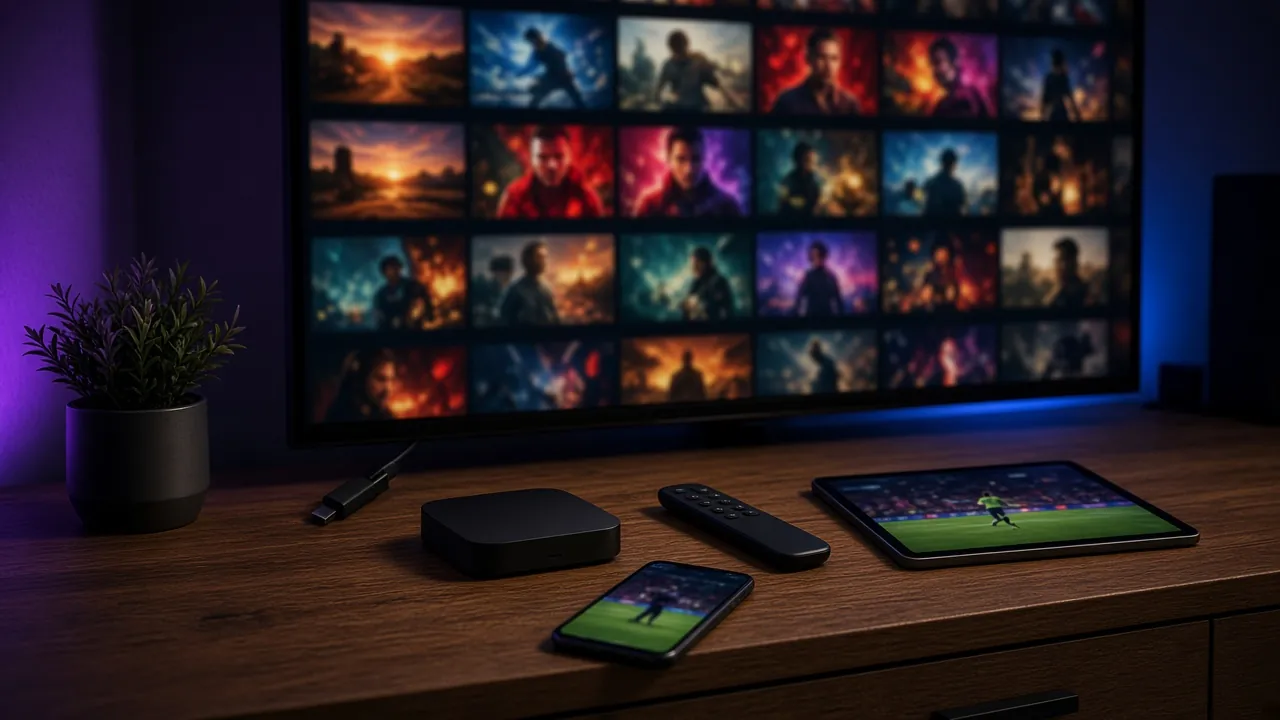
An older TV does not need replacing. A Fire TV Stick or an Android TV box plugged into an HDMI port gives it everything it needs. Our Fire TV Stick setup guide walks you through it.
Questions about smart TVs
Do I need a box to watch Trex TV on a Samsung or LG TV?
Not on most recent models: a player app from the TV’s store is enough. A box or stick only helps if your TV does not offer a suitable app.
Why does the app show a MAC address?
Some player apps identify the TV by this address. Send us a photo of the screen and we will link your login to your TV.
Does Trex TV work on older TVs?
Often, yes, with a streaming stick or an Android TV box plugged into the HDMI port.
What speed do I need for 4K on a smart TV?
About 25 Mbps, steady, ideally over a network cable.
For every other device, see our Trex IPTV setup guides. Then test it with the free trial, or message us with your TV model.