How to Set Up Trex IPTV on Fire TV Stick: Step by Step
From a fresh Fire TV Stick to your first channel: every step, the settings that help, and fixes for the snags people hit most.
The Fire TV Stick is the most common way our customers watch Trex IPTV, and for good reason: it is small, inexpensive and turns almost any TV with an HDMI port into a smart one. This guide takes you from a stick still in its box to your first channel, with the settings that make a real difference and the fixes for the problems people run into most.
What you need before you start
- A Fire TV Stick. A 4K-capable model is worth it if your TV is 4K; a standard model is fine for Full HD TVs.
- A spare HDMI port on your TV.
- A wall socket nearby. Always use the power adapter that came with the stick; a TV’s USB port rarely supplies enough power and causes random restarts.
- Your internet connection. Wi-Fi works well if the signal is strong; an Ethernet adapter for the stick is even better.
- Your login details, sent to you on WhatsApp for your free trial or after you order.
Step 1: set up the stick
- Plug the stick into the HDMI port, using the short extender cable if the port is cramped.
- Connect the power adapter to a wall socket.
- Switch on the TV and choose the matching HDMI input with the Source or Input button.
- Pair the remote by holding the Home button if it does not connect by itself.
- Choose your language and Wi-Fi network, then enter your Wi-Fi password.
- Sign in to your account when the stick asks; it needs one to download apps.
Step 2: install updates
An up-to-date stick is more stable and runs current apps better.
- Open Settings (the gear icon on the home screen).
- Go to My Fire TV, then About.
- Select Check for Updates and install anything offered.
- Restart the stick when the update finishes.
Step 3: improve the connection
- In Settings, open Network.
- Choose your router’s 5 GHz network if it appears separately; it is faster at short range.
- Check the signal strength by highlighting your network and pressing the play/pause button.
- If the signal is weak, move the router into the open, add a mesh point near the TV, or use an Ethernet adapter.
Step 4: install the player app
- Go back to the home screen and select the search icon.
- Type the name of the player app we recommended in our WhatsApp message.
- Select the app in the results, then Download or Get.
- Open the app once it has installed.
- Move it to the front of your apps row: highlight it, press the menu button (three lines) and choose Move.
If the app we recommended is not in your stick’s store, do not download files from random websites. Message us and we will suggest a safe alternative for your model.
Step 5: add your Trex TV login
- Open the player app.
- Choose the option to add a playlist, profile or subscription.
- Enter your login details exactly as we sent them, character by character, including capital letters and symbols.
- Give the profile a name if asked, such as “Living room”.
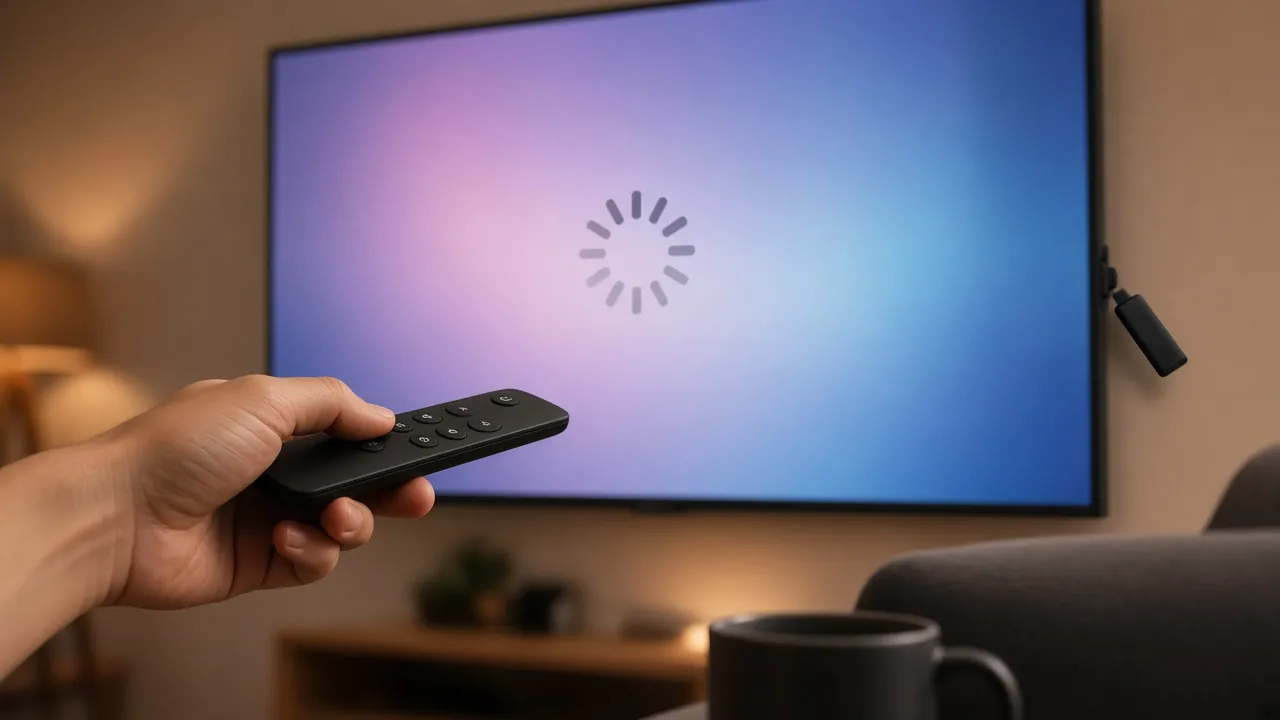
- Wait for the channels, categories and TV guide to load. The first load can take a minute or two.
Tip: the stick’s companion remote app for smartphones usually lets you type with your phone’s keyboard, which is much quicker for long logins.
Step 6: settings that improve the picture
Display
In Settings, go to Display & Sounds, then Display. Leave video resolution on Auto so the stick picks the best your TV supports. If you see an option to match the frame rate to the content, turn it on: films judder less.
Storage
A stick with full storage slows down. In Settings, go to Applications, then Manage Installed Applications. Uninstall apps you no longer use and clear the player app’s cache if it becomes sluggish.
Inside the player app
- Choose hardware decoding, usually the smoothest option.
- Increase the buffer size if the picture pauses briefly from time to time.
- Check the TV guide’s time setting so listings match your clock.
Step 7: organize your channels
A list of 33,000+ channels is a lot to scroll through with a remote. Spend five minutes on:
- A favourites list with the channels you actually watch.
- Hiding categories you never use, if the app allows it.
- A parental PIN on adult categories, if children use the TV.
Common problems and how to fix them
The app says the login is invalid
Check every character of the login; one extra space is enough to fail. Make sure the stick is online by opening another app. If it still fails, send us a photo of the error.
The picture freezes every few minutes
This is almost always the home network. Move the stick closer to the router, switch to 5 GHz, or add an Ethernet adapter. Restart the router and the stick, and pause big downloads while you watch.
The stick restarts on its own
Plug the original power adapter straight into a wall socket. Check the stick is not overheating behind the TV; the HDMI extender lets you move it into the air.
The TV guide is empty or the times are wrong
Refresh the guide in the player app, then check the stick’s date, time and time zone. Guides sometimes take a few minutes to appear after the first login.
The remote stops responding
Replace the batteries, then hold the Home button for about ten seconds to pair it again.
Setting up a second stick in another room
Many households start with the living-room TV and add a bedroom or kitchen screen later. The process is the same as above, with two extra tips:
- Tell us before you set it up, so we can explain the right configuration for more than one screen in your household.
- Check the Wi-Fi in that room first. Bedrooms are often furthest from the router; run a speed test on the new stick before blaming the service if it buffers.
Once both sticks are running, give each player profile a clear name, such as “Lounge” and “Bedroom”, so you always know which one you are adjusting.
Taking the stick with you
The stick fits in a pocket, so you can take it to a holiday home or a hotel with an HDMI-equipped TV. Connect it to the new Wi-Fi network in Settings, then Network, and check the speed before you start a 4K film.
Questions about Fire TV Stick setup
Which Fire TV Stick should I buy for Trex IPTV?
A 4K-capable model if your TV is 4K; a standard model is fine for a Full HD TV.
Is Wi-Fi good enough for 4K on a Fire TV Stick?
Yes, if the signal is strong and you get a steady 25 Mbps at the TV. Otherwise, an Ethernet adapter is the most reliable fix.
Do I need an account to set up the stick?
Yes. The stick asks you to sign in during setup, and the account is used to download apps.
Can I use my login on several sticks?
Tell us which devices you want to use before you order and we will explain the right setup for your household.
For every other device, see our Trex IPTV setup guides. Not set up yet? Start with the free trial, compare plans on the pricing page, or message us with your stick model.